How to Fix Packet Loss in Games
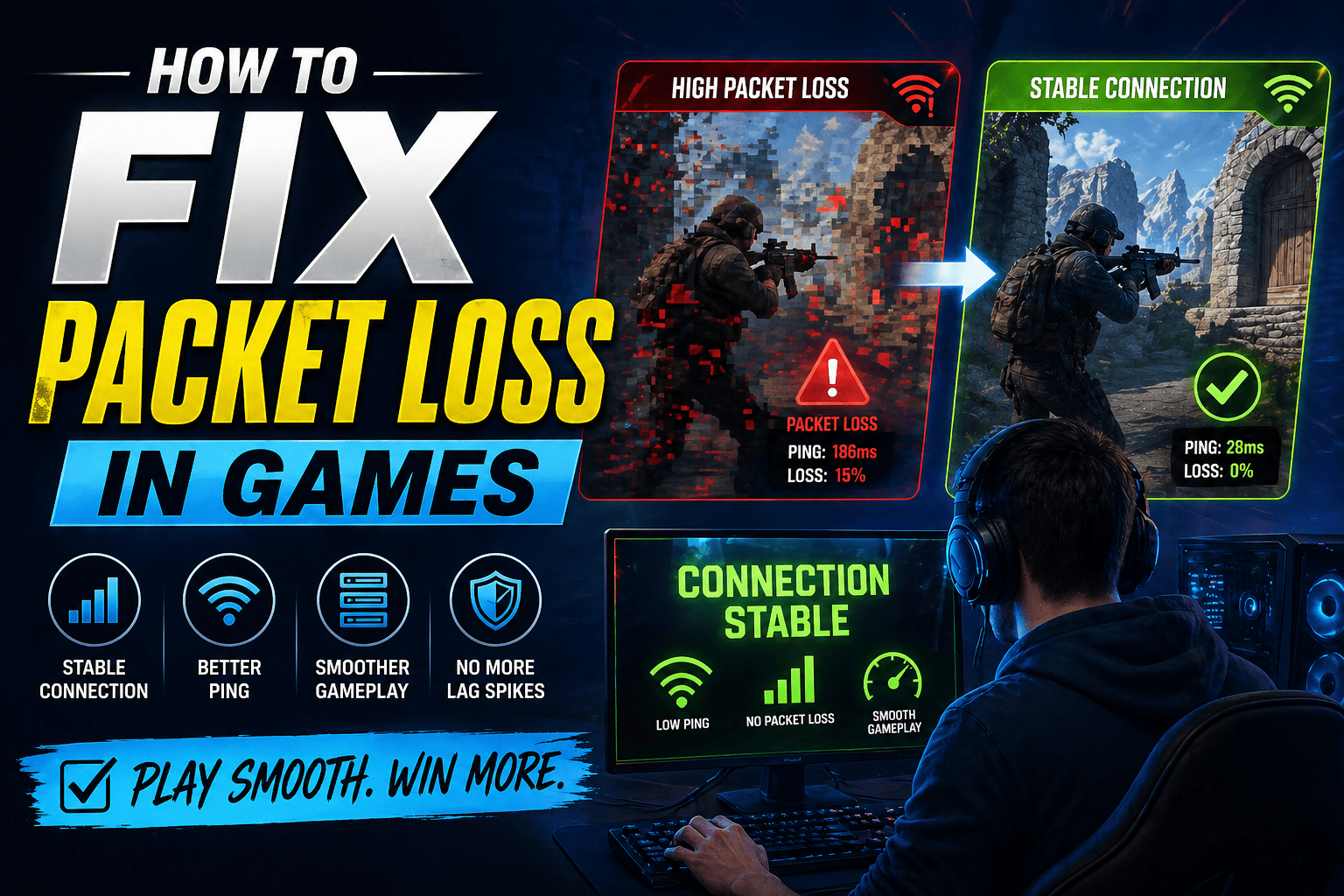
Few things ruin a gaming session quite like packet loss. You're in the middle of a crucial fight, and suddenly your character teleports, your inputs stop registering, or the game freezes for a split second before snapping back to reality. Unlike high ping, which makes everything feel delayed but predictable, packet loss makes games feel broken and unpredictable — because in a technical sense, they are.
Understanding what packet loss is and how to systematically eliminate it can transform your online gaming experience from frustrating to fluid.
What Is Packet Loss?
When you play an online game, your device constantly sends and receives small bundles of data called packets. These packets carry everything — your movement inputs, your shots fired, the positions of other players, hit detection results, and more. Under normal conditions, this exchange happens dozens to hundreds of times per second with near-perfect reliability.
Packet loss occurs when some of those packets never reach their destination. A 1% packet loss rate means 1 out of every 100 packets is being dropped somewhere along the route between your device and the game server. That sounds minor, but at the speed online games operate, even 1–2% loss is enough to cause noticeable rubber-banding, skill failures, and desync. At 5% or above, most games become genuinely difficult to play. Anything above 10% is effectively unplayable in competitive titles.
The tricky part is that packet loss can originate from many different points — your device, your router, your ISP, or somewhere along the broader internet routing path — and each source requires a different fix.
Step 1: Confirm You Actually Have Packet Loss
Before troubleshooting, confirm the problem is packet loss and not just high latency or an unstable connection.
Use the in-game network diagnostics. Many games display packet loss directly in their network stats overlay. In Valorant, you can see it in the top-left corner. In Fortnite, enable the network stats display in settings. In CS2, use the net_graph console command equivalent. If the game shows a packet loss percentage above 0%, you have confirmed loss.
Run a ping test with packet loss detection. Open Command Prompt (Windows) and run:
ping -n 100 8.8.8.8This sends 100 packets to Google's DNS server and reports how many were lost. A healthy result shows 0% loss. Any lost packets indicate a problem between your device and the internet.
For a more thorough test, use WinMTR (Windows) or MTR (Mac/Linux). These tools trace the route your data takes hop by hop and show where exactly packets are being dropped. This is the most useful diagnostic tool for packet loss because it pinpoints whether the problem is at your router, your ISP, or further down the line.
To use WinMTR, download it, enter your game server's IP address (available in the game's network settings or via community tools), run it for 5–10 minutes while experiencing issues, and look for any hops showing a loss percentage above 0%.
Step 2: Switch to a Wired Connection
If you're on Wi-Fi, this is your first and most important fix. Wi-Fi is inherently unreliable compared to a wired Ethernet connection. Radio signals are subject to interference from neighboring networks, microwaves, cordless phones, walls, and simple distance from the router. Any of these can cause packets to be dropped or corrupted.
A wired Ethernet connection eliminates all of this. Data travels through a physical cable with near-zero interference, dramatically lower packet loss rates, and more consistent latency. For most people experiencing intermittent packet loss on Wi-Fi, simply plugging in an Ethernet cable resolves the issue entirely.
If running a cable to your gaming setup isn't practical, consider a MoCA adapter (which sends data through your home's coaxial cable lines) or a powerline adapter (which uses your electrical wiring as a network). Both are significantly more reliable than Wi-Fi for gaming, though neither is quite as good as direct Ethernet.
If you must stay on Wi-Fi, at minimum connect to the 5GHz band rather than 2.4GHz. The 5GHz band is less congested and offers lower latency, though it has shorter range. Position yourself as close to the router as possible and ensure there are minimal walls or obstacles between you and it.
Step 3: Restart and Inspect Your Network Hardware
A surprising number of packet loss issues are caused by routers and modems that simply need to be restarted. These devices run continuously for months or years and can develop memory leaks, overloaded connection tables, or firmware bugs that cause degraded performance over time.
Power off your modem and router completely, wait 60 seconds, then power the modem on first and wait for it to fully connect before turning the router back on. Test your connection afterward.
If restarting helps temporarily but the problem returns after a few days, set your router on a weekly automatic restart schedule — many routers support this in their admin settings.
Also inspect the physical hardware:
- Check all Ethernet cables, especially the cable running from your modem to your router and from your router to your PC. A damaged, old, or low-quality cable can cause significant packet loss. Try replacing cables, particularly any that are kinked, frayed, or very old.
- Check the coaxial or phone line cable connecting your modem to the wall. Loose connections at either end can introduce packet loss at the ISP level.
- If your router is several years old and running hot, poor hardware performance may be causing packet loss under load. Routers have CPUs and RAM that can become bottlenecks, especially on busy home networks.
Step 4: Check for Local Network Congestion
If other devices on your home network are consuming bandwidth while you game, the resulting congestion can cause packet loss for your game traffic. Video streaming, large downloads, video calls, and cloud backups all compete for the same upload and download bandwidth.
Test this by gaming while no other devices are active and seeing if the packet loss disappears. If it does, local congestion is contributing to the problem.
The proper long-term solution is Quality of Service (QoS) configuration on your router. QoS allows you to assign priority levels to different types of traffic. By setting gaming traffic to the highest priority, your router ensures that game packets are processed first, even when other devices are actively downloading or streaming.
Access your router's admin panel (usually at 192.168.1.1 or 192.168.0.1 in a browser), navigate to QoS settings, and prioritize either your gaming device's IP address or UDP game traffic specifically. The exact steps vary by router model — refer to your router's manual or manufacturer support page for specifics.
Some modern routers marketed as gaming routers have simplified QoS features built in, sometimes labeled as gaming mode or traffic prioritization, that handle this automatically.
Step 5: Update or Replace Network Drivers
Your network adapter driver is the software that controls how your PC communicates with your router. Outdated or corrupted network drivers can cause packet loss, intermittent disconnections, and unstable connections.
To update your network driver:
- Right-click the Start menu and open Device Manager
- Expand Network Adapters
- Right-click your Ethernet or Wi-Fi adapter and select Update driver
- Choose Search automatically for drivers
Alternatively, visit your laptop or motherboard manufacturer's website and download the latest network driver directly. This is often more reliable than Windows Update for finding the most current version.
If you recently updated a network driver and packet loss started afterward, try rolling back to the previous version through Device Manager by right-clicking the adapter and selecting Properties → Driver → Roll Back Driver.
Step 6: Disable Bandwidth-Heavy Background Applications
Even when you're not actively using them, many applications consume network bandwidth in the background, creating competition for your game's packets. Common offenders include:
- Windows Update — downloading updates silently in the background
- Steam, Epic Games, or other launchers — updating games or pre-loading content
- Cloud backup services — Dropbox, OneDrive, Google Drive uploading files
- Torrent clients — uploading or seeding even when you're not downloading
- Antivirus software — downloading definition updates or running cloud scans
Open Task Manager and click the Network column to sort by network usage. Identify anything consuming significant bandwidth and close it or pause it before gaming. For Windows Update specifically, go to Settings → Windows Update → Advanced Options and set Active Hours so updates don't run during your gaming time.
Step 7: Flush DNS and Reset Network Stack
Corrupted DNS cache or misconfigured network stack settings in Windows can contribute to connection instability and packet loss. Resetting these is quick, free, and occasionally makes a meaningful difference.
Open Command Prompt as Administrator and run these commands one by one:
netsh winsock reset
netsh int ip reset
ipconfig /release
ipconfig /flushdns
ipconfig /renew
Restart your computer afterward. These commands reset Winsock (the interface between applications and network services), clear your IP configuration, and flush cached DNS entries that might be routing your traffic incorrectly.
Step 8: Change Your DNS Server
Your ISP's default DNS servers are sometimes slow, overloaded, or geographically distant from game servers, which can contribute to routing inefficiency and occasional packet loss. Switching to a faster DNS provider can help, though it's more likely to improve latency than packet loss directly.
Popular alternatives include:
- Cloudflare: 1.1.1.1 and 1.0.0.1
- Google: 8.8.8.8 and 8.8.4.4
- OpenDNS: 208.67.222.222 and 208.67.220.220
To change DNS on Windows, go to Settings → Network & Internet → Change adapter options → right-click your active connection → Properties → select IPv4 → Properties → enter your preferred DNS addresses manually.
Step 9: Check for ISP-Side Problems
If you've eliminated all local causes and still experience packet loss, the issue may lie with your Internet Service Provider. ISPs can have congested nodes, faulty infrastructure, or routing problems that affect packet delivery — particularly during peak evening hours when network load is highest.
Run WinMTR or a continuous ping test and look carefully at which hop is dropping packets. If the loss begins at the second or third hop — which represents your ISP's infrastructure rather than your home network — then the problem is on their end.
Document your findings. WinMTR generates a shareable report you can export. When contacting your ISP, having specific data showing exactly which of their nodes is dropping packets gives you a much stronger case than simply saying "I have packet loss." Request that a technician investigate the specific node or routing path your traffic takes.
Also ask your ISP to check the signal levels on your connection. For cable internet users, the signal-to-noise ratio on your coaxial line directly affects packet loss. A technician can inspect this and may find a corroded splitter, damaged cable, or signal level issue that's causing loss at the physical layer.
Step 10: Try a VPN or a Gaming Network Optimizer
This may seem counterintuitive — adding a VPN means routing your traffic through an additional server, which normally increases latency. However, in specific cases, a VPN can actually reduce packet loss by bypassing a congested or problematic segment of your ISP's routing path.
If WinMTR shows that packets are being lost at a specific ISP node, a VPN reroutes your traffic around that node entirely, potentially eliminating the loss. This is most useful when the problem is clearly within your ISP's network rather than at home.
Tools specifically built for gaming — such as ExitLag, Mudfish, or Wtfast — work similarly by routing your game traffic through optimized servers with multiple redundant paths. They're not magic solutions, but they can genuinely help in cases where the default routing path between you and the game server is poor.
Test a VPN's free trial before paying for anything. If your packet loss disappears or drops significantly on a VPN, it confirms the issue is routing-related and that a dedicated gaming network service could be worth the cost.
Step 11: Select the Right Game Server Region
Sometimes packet loss isn't caused by your connection at all — it's caused by selecting a game server that's too geographically distant. The further your data has to travel, the more routing hops it crosses, and each hop is an additional opportunity for packets to be dropped.
Most online games let you manually select or prioritize server regions. Always choose the region closest to your physical location. If automatic server selection is available, disable it and set your region manually, since auto-selection doesn't always choose optimally.
In some games you can also switch between servers mid-session or in the lobby. If you're experiencing loss on one server, backing out and re-queuing sometimes connects you to a different, healthier server.
Step 12: Consider Hardware Upgrades
If you've exhausted every software and configuration fix and still experience chronic packet loss, the hardware itself may be the limiting factor.
Replace your router. Consumer routers have finite lifespans. A router that's more than five years old may struggle with modern network loads, run outdated firmware with no more updates, and have degraded hardware that causes connection instability. A modern mid-range router from brands like ASUS, TP-Link, or Netgear makes a meaningful difference for gaming reliability.
Upgrade your modem. If your ISP provides a combined modem/router unit (a gateway), consider asking if they can replace it or upgrading to your own modem. ISP-provided equipment is often low-quality and may not be updated regularly. Owning your own DOCSIS 3.1 modem (for cable internet) ensures you have modern, capable hardware.
Replace your Ethernet cable. If you're using very old or cheap Ethernet cables, upgrade to Cat6 or Cat6a cables rated for gigabit speeds. While basic packet loss is rarely caused by cable category alone, damaged or degraded cables absolutely can cause loss at the physical level.
Building a Reliable Gaming Connection
Packet loss is one of the more frustrating network problems because it's inconsistent, often hard to reproduce on demand, and can come from multiple sources at once. The key is to work through the chain methodically — starting from your own device, then your home network, then your ISP, and finally the routing path to the server.
Start with the highest-impact changes first: switch to wired, restart your hardware, check for congestion, and update your drivers. If those don't resolve it, pull up WinMTR and identify exactly where the loss is occurring. That single piece of information will tell you whether the fix lives in your home or requires pushing back on your ISP.
A clean, packet-loss-free connection is entirely achievable for most setups. Work through the steps, document what you find, and you'll get there.
